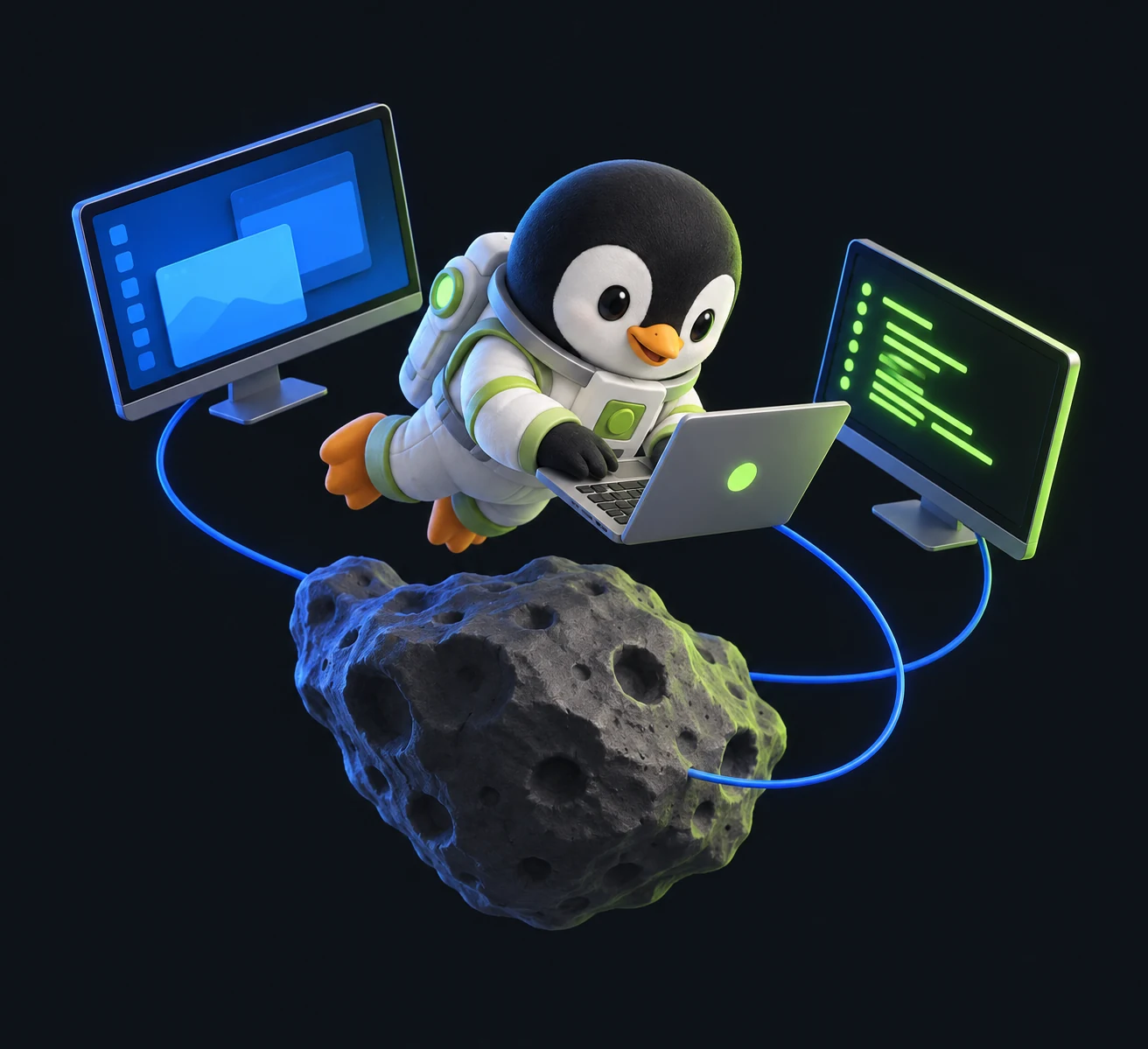
Preserve session continuity
Access the desktop that is already logged in, with its applications, windows, processes, and GPU acceleration intact. No duplicate environment to rebuild.
Remote access for GNOME workstations
Secure, unattended access to the GNOME workstation your work depends on. Return to the same applications, windows, and monitors from any modern browser—without starting a second desktop.
Operational continuity
Waylo helps developers, operators, and technical teams return to the exact GNOME environment their work depends on—wherever that workstation happens to be.
Access the desktop that is already logged in, with its applications, windows, processes, and GPU acceleration intact. No duplicate environment to rebuild.
A systemd user service keeps Waylo ready, while direct GNOME integration removes the local sharing prompt. Ideal for workstations in offices, labs, and remote sites.
No dedicated viewer or browser plug-in is required. Connect from a current laptop, phone, or tablet with keyboard, pointer, scrolling, touch, and on-screen keyboard support.
The complete working session comes with you.
Multi-monitor workflows
Open each remote monitor in its own browser window, place it on the matching local display, and work fullscreen. Waylo remembers the arrangement for the next session.
Move your pointer across both monitors.
The pointer crosses shared monitor edges just as it does at the physical workstation. Waylo renders it locally in the browser to keep interaction responsive. Active display: DP-1.
Architecture
Waylo works with GNOME’s compositor APIs to provide remote control without creating a parallel desktop.
Reach the workstation through an SSH tunnel or VPN. Waylo serves HTTPS and encrypted WebSockets by default.
Credentials are checked against the host’s OpenSSH service. Only the user who owns the active desktop session can connect.
Mutter supplies the active desktop and receives input. Low-latency video returns to the browser as H.264 when available, with automatic MJPEG fallback.
Screen out: Mutter ScreenCast → PipeWire → GStreamer → H.264 (hardware-accelerated when available) → wss:// → WebCodecs. If H.264 is unavailable, Waylo falls back to MJPEG.
Input in: Browser events → wss:// → Mutter RemoteDesktop. The cursor is hidden in the video and rendered locally, so it does not trail behind your hand.
Purpose-built for GNOME
Conventional remote-access tools often depend on assumptions that do not hold for an unattended GNOME workstation on Wayland.
On Wayland, VNC may be unable to capture the active session or may create a virtual display without the real windows or GPU acceleration.
xrdp starts another graphical session, which can conflict with the GNOME session already running on the workstation.
Portal-based sharing asks a local user to approve access and select a monitor, preventing reliable unattended operation.
Deployment
Run the installer on the GNOME workstation as its normal desktop user—not with sudo.
$ wget -qO- https://waylo.site/install.sh | sh
Review install.sh before running it, or use the self-extracting archive below for controlled and offline deployments.
~/.local/share/wayloHost requirements: GNOME on Wayland or Xorg, OpenSSH, and GStreamer; GNOME 45–48 is recommended. Current Chrome, Edge, Safari, and Firefox support H.264 through WebCodecs, with MJPEG as the automatic fallback. Keep Waylo behind an SSH tunnel or VPN rather than exposing port 8080 to the public internet.
Downloads
Install the server on each GNOME workstation. The optional desktop client adds saved connections, certificate pinning, encrypted credential storage, and one-click multi-monitor sessions.
chmod +x and go
127 MB
On Ubuntu, install the deb with sudo apt install ./waylo-desktop-latest-linux-amd64.deb. Ubuntu Software cannot open local debs from your home folder reliably.
Use the quick start for a first connection, then review cold-boot auto-login, locked-screen capture, security, performance tuning, clipboard, audio, file transfer, and configuration options.
lo, the loopback interface—a nod to returning securely to the workstation and session that are already yours.